Party and raid小队和团队
Party and raid frames, click casting, the readiness and buff check, raid leader tools and PvP.
小队和团队框体,点击施法,准备检查和增益检查,团长工具和 PvP。
Party小队
Party frames for healers: two aura rows with your heals and shields, boss debuffs, and a test party.
给治疗用的小队框:两排光环含你的持续治疗和护盾,首领减益,带测试小队。
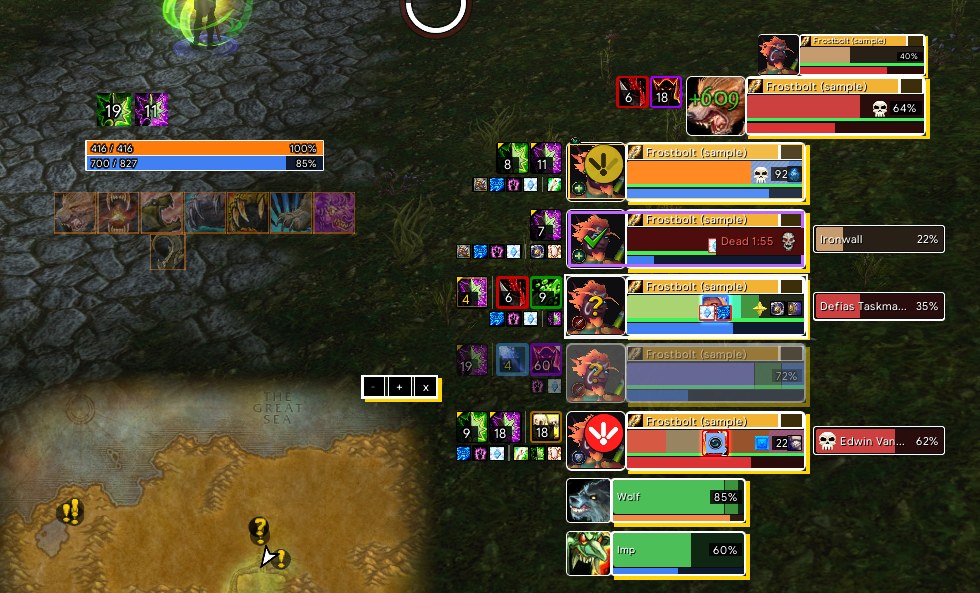
P5UI replaces Blizzard's party frames with frames made for healing. Each member gets two rows of square aura icons beside the frame: debuffs and your heals and shields next to it, other players' heals and long group buffs outside. A big boss debuff icon sits in the middle of the health bar. Incoming heals, absorb shields, death, offline and summon states, defensives and missing buffs show on the frame too. Stack the frames or put them side by side, and use the test party to set it all up alone.
P5UI 的小队框体专为治疗准备,替换暴雪原来的小队框体。每个队友旁边有两排方形光环图标:靠框体的是减益、你放的持续治疗和护盾,外面的是别人放的治疗和团队增益。血条中间有首领减益的大图标。治疗预估、吸收盾、死亡离线和召唤状态、减伤图标、缺增益提示都画在框体上。框体可竖排或横排,一个人时打开测试小队就能把一切调好。
What you can set可以设置什么
- Layout: yourself (optional) and four members, stacked or side by side, in your order or sorted by role; party pets; width, height, spacing, scale and opacity. The first entry on the page, the standalone frame editor, opens a window beside the settings: one party frame magnified, and the settings in three tabs (inside the frame, around it, global). Click a part of the magnified frame and its settings come up; indicator places can be dragged, nudged with the arrow keys and snapped, every change can be undone, and the frame can be shown as another member (tank, healer, damage, low health, dead, offline). A "Simulate" row under it shows heal prediction, threat, dead, resurrection and summon on the preview, and the class icon can be hidden by dragging it off the frame. The same window edits the three raid sizes and the player, target, focus, pet and boss frames. Under the button, the whole-frame test leaves only your own frame and three to compare with on the screen, to judge how much room the frames take.
- Me in the party (off by default): put yourself, your target and its target into the party frames, even when you are alone. A separate "Raid-style party" switch shows the party as five raid cells instead.
- Two aura rows per member: debuffs and your heals over time and shields next to the frame, others' heals and the long group buffs outside. Corner marks and countdown numbers; icon size, count and spacing for each row; a buff block list and an always-show list.
- A boss debuff icon in the middle of the health bar, a green line under the bar while your heal over time is on a member, defensive cooldown icons, missing group buff icons, and custom indicators in any corner or edge middle (several spells at one place line up side by side, to the left or to the right, and in the frame editor a spell can hang anywhere on the frame; the custom indicators' settings are in both the inside and the around tab of the party and the raid frame editors); while an indicator's buff or debuff is on a member, his health bar and name can take a colour you pick and the whole frame can fade.
- Alerts: a dispel highlight (white cover or an outline in the debuff type's colour; on by default); a sound and a flash for debuffs you can dispel or list, and the spell icon when an enemy casts at a member (both off by default).
- Status on each frame: range fade, target highlight, leader and role icons (P5UI's own round badges: tank yellow, healer green, damage red; role icon size 8–32 px), raid marks, ready check, threat button, death, resurrection and summon states.
- Extras: member cast bars in a name header, each member's target (off in the base settings, on in the recommended profile), health colours and a low-health warning, fonts and textures from other addons, fade out of combat when nobody is hurt and you have no target (off by default), and automatic accept of summons and resurrections from group members (off by default). A small yellow dot marks a setting that differs from its default: hover it to see the default, hold it for 0.6 s to restore it.
- 排列:自己(可选)加四名队友,竖排或横排,按你的顺序或按职责排;显示队友的宠物;宽度、高度、间距、缩放和透明度。页上的第一项“单独框体编辑器”会在设置窗口旁边打开一个窗口:放大的一个小队框体,设置分三个分页(框体里面、框体周围、整体)。点放大框体上的部件就跳到它的设置;指示器位置可以拖动、用方向键微调、吸附到网格,每一步改动都能撤销,框体还能显示成别的队友(坦克、治疗、输出、低血量、死亡、离线)。放大框体下面有一排“模拟状态”,在预览上显示治疗预估、仇恨、死亡、复活和召唤;职业图标拖出框体就隐藏。同一个窗口也能编辑三套团队人数,以及玩家、目标、焦点、宠物和首领框体。按钮下面的“整体框体测试”会让屏幕上只剩你自己的框体和三个对照框体,用来量框体占多大地方。
- 合并自己(默认关):把你自己、你的目标和目标的目标放进小队框体里,只有你一个人时也显示。另有“团队框的样子”一节,开关可以让小队改用团队框体的样子(5 格)。
- 每个队友两排光环:靠框体的是减益、你放的持续治疗和护盾,外面的是别人放的治疗和长时间的团队增益;有角标和倒计时数字;每一排的图标大小、个数、间距都能调;有增益黑名单和白名单。
- 血条中间的首领减益大图标;你的持续治疗在他身上时,血条下面一条绿线;减伤图标、缺增益图标,以及放在任意角或边中点的自定义指示(同一位置的几个法术并排显示,可选往左或往右;在框体编辑器里法术还能挂在框体上任意位置;自定义指示的设置在小队和团队框体编辑器的“框体里面”和“框体周围”两个分页里都有);指示器的 buff / debuff 在队友身上时,他的血条和名字可以换成你选的颜色,整个框体也可以变淡。
- 提醒:可驱散减益的高亮(整个框体盖上白色,或按类别颜色描边;默认开);你能驱散的或你列出的减益出现时响声并闪一下,敌人对队友读条时在他的框体上显示技能图标(两项都默认关)。
- 框体状态:超出距离变暗、目标高亮、队长和职责图标(P5UI 自己的圆形图标:坦克黄、治疗绿、输出红;8–32 像素可调)、团队标记、就位确认、仇恨按钮、死亡、复活和召唤状态。
- 其他:队友施法条(放在姓名顶栏)、队友的目标(基础设置默认关,推荐配置档里开着)、血条颜色和低血量提示、来自别的插件的字体和材质、脱战且没有目标、全员满血时淡出(默认关)、自动接受队友的召唤和复活(默认关)。和默认值不同的设置旁边有一个小黄点:鼠标放上去看默认值,按住 0.6 秒恢复默认。
Where to find it在哪里
In the settings window, left menu, group "Party and raid": Party. /p5ui test turns the test party on and off. /p5ui unlock and /p5ui lock move the frames (opening Blizzard's Edit Mode unlocks them too).
在设置窗口左边的列表里,“小队和团队”一组中的“小队”。/p5ui test 打开或关闭测试小队。/p5ui unlock 和 /p5ui lock 解锁和锁定框体,方便拖动(打开暴雪的编辑模式也会解锁)。
Raid团队
Compact raid frames with their own full settings for 1–10, 11–20 and 21–40 players.
团队框按 1–10、11–20、21–40 人分三套,每套有自己的全部设置。
P5UI raid frames replace Blizzard's, with one cell per member. The settings come in three sets, for 1–10, 11–20 and 21–40 players, and the raid switches to the right set by itself out of combat. Each set keeps its own layout, panels, texts, icons and alerts. A cell shows boss debuffs on top, your heals over time and shields at the bottom left, and defensives at the bottom right. A test raid, with you in the first slot, lets you place everything without a raid.
P5UI 的团队框体替换暴雪原版,每个成员一格。设置按人数分成三套:1–10 人、11–20 人、21–40 人,团队人数变了,脱战后自动换成对应的一套。每套都有自己的布局、坦克栏、文字、图标和提醒。一格的上方显示首领减益,左下是你的持续治疗和护盾,右下是减伤。没有团队时,用测试团队(第一格是你自己)也能把位置摆好。
What you can set可以设置什么
- Three size sets, one tab each. The test raid follows the tab, and a set can be copied into another. The standalone frame editor (first entry on the page) opens a window with one magnified raid cell, shown as normal, dead, offline, out of range and so on, and the settings of what is inside the cell and its size; the three sizes (1-10, 11-20, 21-40) are picked in the window. A set can also be picked by place ("Layout by content"): battleground, 5-player dungeon, raid instance or open world.
- Named raid layouts (up to 12): save, copy, rename and delete them, and pick one automatically by place, role and group size. They switch after combat.
- Layout and sorting: a column per group, or all together by role (in your order) or by class; sort by name; show only the first groups; your group first. Direction, members per column, size, spacing, health text and number format.
- Tank, healer and pet panels (the tank panel is on by default), moved by dragging their top strip, and each tank's target beside the tank panel.
- Spotlight (off by default): up to 5 cells that always show your target, your focus, the tanks or players you name.
- On each cell: names or role icons (P5UI's own round badges), power bars by role (healers only by default) with a low-mana warning, range fade, target ring, leader, main tank and main assist, ready check, resurrection, raid marks and a threat border.
- A colour mask over the whole cell for a debuff you can dispel and for a boss debuff; custom indicators (they can also colour the health bar and name or fade the whole frame); a small yellow dot beside a setting that differs from its default (hover for the default, hold 0.6 s to restore); debuff alerts (off by default); raid cast bars (off by default); a switch to hide Blizzard's raid manager.
- 三套人数设置,各占一个标签。测试团队跟着标签换,一套可以复制到另一套;页上的第一项“单独框体编辑器”会打开一个窗口,放大显示一个团队格子(正常、死亡、离线、超出距离等状态),编辑格子里面显示什么和格子大小,三套人数(1-10、11-20、21-40)在窗口里选;也可以按场所选用(“按场所选用哪一套”):战场、5 人副本、团队副本、野外。
- 命名团队布局(最多 12 个):可以保存、复制、改名、删除,并按场所、职责和人数自动选用;战斗结束后才切换。
- 分组和排序:每个小队一列,或合在一起按职责(顺序你定)或按职业排;按名字排;只显示前几个小队;把你的小队放最前。方向、每列人数、大小、间距、血量文字和数字格式也能调。
- 坦克栏、治疗栏和宠物栏(坦克栏默认开),拖栏顶的细条就能挪;坦克的目标显示在坦克栏旁边。
- 聚焦框(默认关):最多 5 格,一直显示你的目标、焦点、坦克或你指定的人。
- 每一格:名字或职责图标(P5UI 自己的圆形图标)、按职责显示的能量条(默认只给治疗)和低蓝提示、超出距离变暗、目标白圈、队长、主坦克和主助理、就位确认、复活、团队标记和仇恨红框。
- 可驱散减益和首领减益各有一层盖满整格的颜色;自定义指示(也能给血条和名字换色,或让整个框体变淡);和默认值不同的设置旁边有小黄点(鼠标放上去看默认值,按住 0.6 秒恢复);减益提醒(默认关);团队施法条(默认关);还有隐藏暴雪团队管理条的开关。
Where to find it在哪里
In the settings window, left menu, group "Party and raid": Raid. /p5ui raidtest turns the test raid on and off. /p5ui unlock and /p5ui lock move the frames and panels (opening Blizzard's Edit Mode unlocks them too).
在设置窗口左边的列表里,“小队和团队”一组中的“团队”。/p5ui raidtest 打开或关闭测试团队。/p5ui unlock 和 /p5ui lock 解锁和锁定框体与各个栏,方便拖动(打开暴雪的编辑模式也会解锁)。
Click casting点击施法
Cast spells by clicking party, raid, unit and boss frames, using the game's own click casting.
直接点框体施法,用的是游戏自带的点击施法,不用另装插件。
P5UI uses the game's own click casting, so you need no extra addon. Add spells in the game's click casting window, and the same bindings work on P5UI's unit, party, raid and boss frames. The page lists what you have set up. Two options let a click also target the unit, and let the same combinations cast on people in the world. It also sets keys that cast while the mouse is over a frame. The test party and test raid let you try it.
P5UI 用的是游戏自带的点击施法,不用另装插件。在游戏的点击施法窗口里加好法术,P5UI 的头像、小队、团队和首领框体就能用同样的绑定。这一页列出你现在设好的组合,还有两个可选项:点击时同时选中目标,以及在游戏场景里直接点人也能施法。这一页还能设置鼠标指着框体时按键施法。测试小队和测试团队可以拿来试。
What you can set可以设置什么
- A "Set up click casting" button that opens the game's click casting window. Click a spell in the spellbook beside it to add it, then click its row with the mouse button you want, holding Shift, Ctrl or Alt if you like, and press Save.
- A list of the combinations you have set, with a note on whether each also works in the world (shown when the world option below is on). They are kept per class in your profile and travel with exports.
- "Click casting also targets the unit": a click targets first and then casts. Off in the base settings, so healing a member does not take away your target; on in the recommended profile a new install starts with.
- "Click casting in the world too": click players and NPCs directly with the same combinations (needs Shift, Ctrl or Alt, or the middle and side buttons). Off in the base settings; on in the recommended profile.
- Keys over frames: with the mouse over a party, raid or unit frame, a key you set casts a spell or a one-line macro on that unit. Up to 30 keys, kept per class; works in combat.
- Smart resurrection (on by default): left-click a dead member to cast your class's resurrection. Priests, paladins, shamans and druids have one.
- Try it in the test party or test raid; only you are real there, so spells cast on yourself.
- “设置点击施法”按钮,打开游戏的点击施法窗口:在旁边的法术书里点法术加进列表,再按住 Shift、Ctrl 或 Alt(也可以都不按),用想要的鼠标键点那一行,最后点“保存”。
- 列表显示你现在设好的组合,并在“在游戏场景里也能点击施法”打开时标出哪些在场景里也能用。组合按职业存进配置档,导出时一起带走。
- “点击施法时同时选中目标”:点一下先选中再施法。基础设置里默认关,所以给队友加血不会换掉你的目标;新装插件用的推荐配置档里是开的。
- “在游戏场景里也能点击施法”:用同样的组合直接点场景里的玩家和 NPC(要带 Shift、Ctrl、Alt,或用中键和侧键)。基础设置里默认关,推荐配置档里是开的。
- 鼠标指着按键施法:鼠标指着小队、团队或头像框体时,按设好的键就对这个人放法术或一行宏。最多 30 个键,每个职业各记一份,战斗中也能用。
- 智能复活(默认开):左键点死了的队友,就放你这个职业的复活法术(牧师、圣骑士、萨满、德鲁伊有)。
- 在测试小队或测试团队里试:那里只有你自己是真的,法术会放在自己身上。
Where to find it在哪里
In the settings window, left menu, group "Party and raid": Click casting. The game's own window is also under Esc, Options, Keybindings, Click Casting; the page shows the game's own slash command for it when the client has one. /p5ui test and /p5ui raidtest turn on the test groups to try it.
在设置窗口左边的列表里,“小队和团队”一组中的“点击施法”。游戏自带的窗口也可以在 Esc → 选项 → 快捷键 → 点击施法 里打开;客户端有对应的斜杠命令时,这一页会写出来。/p5ui test 和 /p5ui raidtest 打开测试小队和测试团队,用来试。
Self/group tools个人/小队团队工具
One draggable toolbar for marks, world markers, ready check, pull countdown and a buff check.
一条工具条管标记、世界标记、就位确认和开怪倒数,还能查谁缺增益。
This page sets the toolbar you use to get a group ready, alone, in a party or in a raid: raid marks on your target, world markers, a ready check, a pull countdown and a buff check. Buttons you cannot use are greyed out and say why. The buff check lists who is missing Fortitude, Intellect, Mark of the Wild or a Blessing, plus your own class buffs, food and weapon enchant. The page also holds the ready check results window, a dispel assistant and a defensive cooldown panel.
这一页管准备开打用的工具条,单人、小队和团队里都能用:给目标加团队标记、放世界标记、就位确认、开怪倒数和增益检查。没有权限的按钮会变灰并说明原因。增益检查列出谁缺耐力、智力、野性印记或祝福,还查你自己的职业增益、食物和武器强化。就位确认结果窗口、驱散助手和大减伤面板的设置也在这一页。
What you can set可以设置什么
- Toolbar (on, with all five button groups): show it when solo, hide it in combat, hide or grey the buttons you cannot use; hide a whole group or any single button; button size, scale, vertical layout, position and the pull countdown length (3–60 seconds, 10 by default).
- Buff check: it runs when you start a ready check (on by default; untick "Only ready checks I start" to include other people's); an "Announce" button that posts who is missing what to party or raid chat (off by default); choose the group buffs to check, add spells, and edit your own class buffs and consumables.
- Food and flask check for raid leaders, assistants and party leaders (food on by default, flasks off).
- Ready check results (on by default): a movable list of who is ready, not ready, did not answer or unknown. Raid leaders, assistants and party leaders see it automatically; you can show it to everyone.
- Dispel assistant (off by default): a list of members who have a debuff you can dispel, with fixed left and right click spells and an optional sound.
- Defensive cooldown panel (off by default): a row for each member whose class has a big defensive, showing in effect, cooling down or ready. Cooldowns of other players are an estimate.
- A test mode that shows the toolbar and sample results as solo, party or raid.
- 工具条(默认开,五组按钮都显示):单人时也显示,战斗中隐藏,用不了的按钮隐藏或变灰;整组或每个按钮都可以单独隐藏;按钮大小、缩放、竖排、位置和开怪倒数的秒数(3–60 秒,默认 10)。
- 增益检查:你发起就位确认时自动检查(默认开;去掉“只在我发起就位确认时”,别人发起的也会检查);“通报”按钮把谁缺什么发到小队或团队频道(默认关);选要检查的团队增益、加自己的法术、改你职业自己的增益和消耗品。
- 食物和合剂检查:团长、助理和小队队长能看到队友的(食物默认开,合剂默认关)。
- 就位确认结果(默认开):一份可以拖动的名单,分已准备、未准备、未回应和未知。团长、助理和小队队长自动显示,也可以设成所有人都显示。
- 驱散助手(默认关):列出带着你能驱散的减益的人,每行固定左右键法术,可选提示音。
- 大减伤面板(默认关):每个职业有大减伤的成员一行,显示生效中、冷却中或可用;别人的冷却时间是估算的。
- 测试模式:用单人、小队或团队的样子显示工具条和示例结果。
Where to find it在哪里
In the settings window, left menu, group "Party and raid": Self/group tools (the page title is "Self/Party/Raid Readiness, Marker & Buff Check Tool"). /p5ui buffs (or /p5ui buffcheck) runs the buff check.
在设置窗口左边的列表里,“小队和团队”一组中的“个人/小队团队工具”(页面标题是“个人/小队/团队标记准备检查工具”)。/p5ui buffs(或 /p5ui buffcheck)运行增益检查。
Raid leader tools团长工具
Invite by whisper keyword, preview online members, and save and restore raid groups.
密语关键词自动邀请、预览在线成员,还能保存和恢复团队分组。
Raid leader tools are for the person building the raid. The first part is invites: P5UI can invite anyone who whispers your keyword (off by default), and you can preview the online members of your guild, WoW friends or Battle.net friends, with the reason each one is skipped, before inviting them. The second part is raid groups: save the current arrangement, then preview and restore it later. Only the raid leader can restore groups, and only out of combat.
团长工具给组团的人用。第一部分是邀请:有人密语你设的关键词,P5UI 可以自动邀请他(默认关);也可以先预览公会、游戏好友或战网好友里在线的成员,每个被跳过的人都会写明原因,确认后再邀请。第二部分是团队分组:保存现在的分组,以后先预览、再恢复。只有团长能恢复分组,而且要在脱战时。
What you can set可以设置什么
- Automatic invite on a whisper that matches your keyword (the whole message, English not case-sensitive; the default keyword is "inv"). Off by default.
- Preview online members of the guild, WoW friends or Battle.net friends, with the reason each is skipped, then invite the previewed members.
- Every invite is checked again before it is sent. The same person is not invited twice within 30 seconds, and a button stops the current operation.
- Save the current raid groups (click twice to confirm). One arrangement is kept, and it is shared with the profile.
- Preview a restore (who moves from which group to which), then apply it. Absent members are skipped, and new members keep their groups.
- A restore stops if combat starts or the roster or your rights change. It does not carry on by itself.
- A "Show sample (no actions)" button that shows made-up names and does nothing, so you can see how it looks.
- 收到符合关键词的密语时自动邀请(整条消息匹配,英文不分大小写;默认关键词是 “inv”)。默认关闭。
- 预览公会、游戏好友或战网好友里在线的成员,每个被跳过的人写明原因,再点“邀请预览中的成员”。
- 每次邀请发出前都会重新检查。同一个人 30 秒内不会重复邀请,还有一个“停止当前操作”按钮。
- 保存当前的团队分组(要点两下确认)。只保留一份,随配置档一起分享。
- 先预览恢复分组(谁从哪一组换到哪一组),再点“执行预览的分组”。缺席的人跳过,新加入的人保留原来的组。
- 进入战斗、名单变了或权限变了,恢复就会停下,不会自己继续。
- 有一个“显示示例(不执行)”按钮,用假名字演示,不会执行任何操作。
Where to find it在哪里
In the settings window, left menu, group "Party and raid": Raid leader tools. No slash command.
在设置窗口左边的列表里,“小队和团队”一组中的“团长工具”。没有斜杠命令。
PvPPvP
Automatically release your spirit when you die in a battleground. Off by default.
在战场里死亡后自动释放灵魂,默认关闭,其他地方不会触发。
The PvP page has one setting: automatic spirit release in battlegrounds. It is off by default. When it is on and you die in a battleground, P5UI releases your spirit for you. It does nothing in the open world, in dungeons or in arenas. If a resurrection offer or a self-resurrection option is available, the choice stays with you. If you are falling or the game does not allow a release, it retries for about five seconds. A button checks the current conditions without releasing.
PvP 页目前只有一项设置:战场里自动释放灵魂,默认关闭。打开后,你在战场里死亡,P5UI 会替你释放灵魂。野外、副本和竞技场里不会这样做。有复活邀请或自我复活的选项时,选择仍然留给你。正在坠落,或者游戏暂时不允许释放时,它会再试大约五秒。页面上有一个按钮,只检查现在的条件,不会真的释放。
What you can set可以设置什么
- A switch: "Automatically release spirit in battlegrounds". Off by default.
- It only works in battlegrounds, never in the open world, dungeons or arenas.
- When a resurrection offer or a self-resurrection option is available, nothing is released and the choice is yours.
- If you are falling or the game prevents a release, it retries for about five seconds, then stops.
- A button, "Check current conditions (no release)", tells you in chat whether a release would happen now and why not (with the switch off it says "Automatic release is disabled.").
- 一个开关:“战场死亡后自动释放灵魂”,默认关闭。
- 只在战场里生效,野外、副本和竞技场都不会。
- 有复活邀请或自我复活的选项时,不会释放,由你自己选。
- 正在坠落,或者游戏不允许释放时,会再试大约五秒,然后放弃。
- “检查当前条件(不释放)”按钮:在聊天框里告诉你现在会不会释放,不会释放的话说明原因(开关关着时会说“自动释放未开启。”)。
Where to find it在哪里
In the settings window, left menu, group "Party and raid": PvP. No slash command.
在设置窗口左边的列表里,“小队和团队”一组中的“PvP”。没有斜杠命令。