Interface界面
Action bars, menu and bags, XP and reputation, cooldowns, damage meter, bags and bank, loot, chat, quests, leveling dungeons, tooltips, maps, training and the talent planner.
动作条,菜单和背包栏,经验和声望,冷却,伤害统计,背包和银行,拾取,聊天,任务,练级副本,鼠标提示,地图,技能训练和天赋模拟。
Action bars动作条
Rounded action bars with class-colour borders, bar fading, a pet bar, a totem bar and ability glow.
圆角动作条,职业色边框,可淡出,另有宠物条、图腾栏和技能发光。
P5UI restyles Blizzard's action bars with rounded buttons and, if you like, class-colour borders. The main bar's frame art, the gryphons and the page arrows are hidden from the start, and each can be brought back. Icon size and spacing are set here, while rows and orientation stay in Edit Mode. The page also has bar fading, a movable pet bar, a Shaman totem bar, red out-of-range icons, hotkey and macro text settings, and a glow for reactive abilities.
P5UI 把暴雪的动作条换成圆角按钮,边框可以用职业颜色。主动作条后面的底板、两边的狮鹫和翻页箭头一开始就是隐藏的,需要的话都能再打开。图标大小和间距在这一页调,行数和朝向仍在编辑模式里设。这一页还有动作条淡出、可移动的宠物条、萨满图腾栏、超出距离变红、快捷键和宏名文字,以及条件技能发光。
What you can set可以设置什么
- Restyle switch, class-coloured button borders, icon size (24–64) and spacing (0–12).
- Hide the main bar's frame art and the gryphons, and hide the page arrows (Shift+number keys or Shift+mouse wheel still change pages).
- Bar fading: for each bar (main bar, bars 2 to 8, stance bar, pet bar) choose always shown (the start), shown on mouseover, or shown in combat, with a faded opacity, a delay and a fade time. Faded buttons stay clickable and keybindings keep working.
- Pet action bar (on by default): a movable P5UI bar with its own icon size, scale and opacity. Shaman totem bar (shamans only): your four totems as square icons with countdowns, with size, spacing, countdown font size, scale and position, and sample totems to place it.
- Out-of-range (on by default): the whole icon turns red when the game confirms the target is out of range. Blue for no resources and grey for unusable stay.
- Hotkey and macro-name text: show or hide each one and set its font size separately (0 keeps the native size).
- Reactive abilities (Overpower, Revenge, Execute, Riposte and the like) glow when usable; style, colour and the spell list per class are adjustable, with a preview.
- 美化开关、按钮边框用职业颜色、图标大小(24–64)和间距(0–12)。
- 隐藏主动作条的底板和两边的狮鹫,隐藏翻页箭头(Shift+数字键或 Shift+滚轮仍能翻页)。
- 动作条淡出:每条动作条(主动作条、动作条 2 到 8、姿态条、宠物条)可以选一直显示(起始设置)、鼠标移入才显示或战斗中才显示,并设变淡后的透明度、等待时间和淡出时间。变淡时照样能点、能用快捷键。
- 宠物条(默认开):可以拖动的 P5UI 宠物条,图标大小、缩放和透明度自己调。萨满图腾栏(只对萨满生效):四个图腾显示成方形图标和倒计时,大小、间距、倒计时字号、缩放和位置可调,有示例图腾帮你摆位置。
- 超出距离变红(默认开):游戏确认目标超出距离时整个图标变红;资源不足的蓝色和不可用的灰色保留。
- 快捷键和宏名文字:分别显示或隐藏,分别调字号(0 为保持原样)。
- 条件技能(压制、复仇、斩杀、还击这类)能用时按钮发光;样式、颜色和每个职业的技能列表可改,带预览。
Where to find it在哪里
In the settings window, left menu, group "Interface": Action bars. /p5ui unlock and /p5ui lock move the pet bar and totem bar. Rows and orientation are set in Blizzard's Edit Mode.
在设置窗口左边的列表里,“界面”一组中的“动作条”。/p5ui unlock 和 /p5ui lock 解锁和锁定宠物条与图腾栏,方便拖动。行数和朝向在暴雪的编辑模式里设。
XP and reputation经验和声望
Flat, movable experience and reputation bars, with XP per hour and time to the next level.
扁平可拖动的经验条和声望条,能看每小时经验和升级估时。
P5UI replaces Blizzard's experience and reputation bars with two flat bars. By default each is as wide as the main action bar and follows it when you resize it. The experience bar shows rested XP in light blue and hides itself at max level. Point at it to see the XP you gained this login, XP per hour and the time to the next level. The reputation bar shows the faction you watch, coloured by standing. This page also styles the breath and fatigue timers.
P5UI 用两条扁平的条代替暴雪的经验条和声望条。默认和主动作条一样宽,你调整动作条大小时它们跟着变。经验条用浅蓝色显示休息经验,满级时自动隐藏;鼠标指上去能看本次登录获得的经验、每小时经验和升级估时。声望条显示你正在追踪的阵营,颜色跟着声望等级变。呼吸和疲劳计时条的样式也在这一页设。
What you can set可以设置什么
- One switch for P5UI's bars. While it is on, Blizzard's bars are hidden; switching off brings them straight back.
- For each bar: show or hide it, "as wide as the main action bar" or your own width, height, opacity and position (drag it when frames are unlocked).
- Text on the bars: on mouseover only, or always.
- XP statistics on the XP bar tooltip: XP this login, XP per hour and time to the next level (after at least one minute), with a reset button and a preview.
- The reputation bar follows the faction ticked "Show as experience bar" on the reputation tab of the character panel.
- Breath and fatigue timers: flat, movable bars that follow the game's own breath, fatigue and other mirror timers, with width, height, position and a preview.
- 一个总开关,管 P5UI 的两条条。开着时暴雪的条隐藏,关掉马上换回来。
- 每条条各自可以:显示或隐藏,选“和主动作条一样宽”或自己设宽度,调高度、透明度和位置(解锁框体后可以拖动)。
- 条上的文字:只在鼠标指上去时显示,或一直显示。
- 经验条的提示里有本次登录获得的经验、每小时经验和升级估时(统计满一分钟后才显示),带重置按钮和预览。
- 声望条显示在角色面板声望页里勾了“显示为经验条”的阵营。
- 呼吸和疲劳计时条:扁平、可移动,跟着游戏自己的呼吸、疲劳等计时,宽度、高度、位置可调,带预览。
Where to find it在哪里
In the settings window, left menu, group "Interface": XP and reputation. /p5ui unlock and /p5ui lock move the bars. The breath and fatigue timers also show a drag handle in Edit Mode.
在设置窗口左边的列表里,“界面”一组中的“经验和声望”。/p5ui unlock 和 /p5ui lock 解锁和锁定两条条,方便拖动。打开暴雪的编辑模式时,呼吸和疲劳计时条也会出现拖动把手。
Cooldowns冷却
Blizzard's Cooldown Manager in the action bar look, with readable cooldown numbers and swipes.
把暴雪冷却管理器换成动作条的圆角样子,冷却数字也看得清。
This page restyles Blizzard's Cooldown Manager (cooldowns, tracked buff icons and buff bars) with rounded icons and flat bars, like the action bars. It also sets the cooldown numbers on your action buttons and the dark swipe that runs over them. Blizzard still decides which spells the Cooldown Manager shows; turn it on in Blizzard's options. Its size, position, layout and timers are set in Edit Mode. A cooldown preview shows every change at once.
这一页把暴雪自带的冷却管理器(技能冷却、增益图标和增益条)换成和动作条一样的圆角图标、扁平条。动作按钮上的冷却数字和转圈的深色遮罩也在这里调。冷却管理器要先在暴雪的选项里打开,显示哪些技能由暴雪的设置决定,大小、位置、排列和计时在编辑模式里设。页面上的冷却预览让每次改动马上看得到。
What you can set可以设置什么
- Restyle the Cooldown Manager (rounded icons, flat bars; on by default), with class-coloured icon borders, class-coloured buff bars and a flat or Blizzard bar texture.
- Cooldown Manager number size, as a percentage of the icon so it never spills out.
- Numbers on action buttons: show or hide them (this turns on Blizzard's own option and puts your old setting back when off), their size as a percentage of the button, no numbers for cooldowns shorter than 2 seconds by default (such as the global cooldown), and red in the last 5 seconds.
- Cooldown swipe on the action bars and pet bar: how dark it is, a bright line on its edge, and a flash when a cooldown ends (the line and the flash are off by default).
- An "Open Edit Mode" button, and a preview window with sample Cooldown Manager icons, a buff bar and action buttons.
- A "Reset cooldown settings" button.
- 美化冷却管理器(圆角图标、扁平条;默认开):图标边框用职业颜色、增益条用职业颜色、增益条材质选纯色或暴雪原样。
- 冷却管理器的数字大小,按图标大小的百分比算,不会溢出。
- 动作按钮上的冷却数字:显示或隐藏(会打开暴雪自己的选项,关掉时恢复你原来的设置)、大小按按钮的百分比、短于几秒的冷却(默认 2 秒,比如公共冷却)不显示数字、最后 5 秒变红。
- 动作条和宠物条上的冷却遮罩:深浅、边缘的亮线,以及冷却结束时的闪光(亮线和闪光默认关)。
- “打开编辑模式”按钮,还有冷却预览窗口:示例的冷却管理器图标、增益条和动作按钮。
- “重置冷却设置”按钮。
Where to find it在哪里
In the settings window, left menu, group "Interface": Cooldowns. P5UI's own tracker is a separate page at the top of the menu, "Cooldown Manager" (page title "P5UI Aura Cooldown Manager (Beta)").
在设置窗口左边的列表里,“界面”一组中的“冷却”。P5UI 自己的冷却追踪是菜单最上面的另一页“冷却管理器”(页面标题“P5UI Aura 冷却管理器(测试版)”)。
Damage meter伤害统计
Blizzard's damage meter in the P5UI look, with windows you can move and resize any time.
暴雪自带的伤害统计换成 P5UI 的样子,窗口随时能拖动和改大小。
P5UI restyles Blizzard's own damage meter with flat dark panels, thin black edges and flat class-colour bars. The numbers, windows and menus stay Blizzard's and stay right in combat. Every window, the main one too, moves by its title bar and resizes by its corner without Edit Mode, and P5UI remembers where it is and how big. Blizzard allows up to three windows, each showing something different, such as damage, healing, interrupts or dispels.
P5UI 把暴雪自带的伤害统计换成深色扁平面板、细黑边和纯色的职业颜色条。数字、窗口和菜单仍然是暴雪的,战斗中照样准,只换外观。每个窗口(主窗口也一样)随时拖标题栏移动、拖右下角改大小,不用进编辑模式,P5UI 会记住位置和大小。暴雪最多允许三个窗口,每个窗口可以显示不同的内容,比如伤害、治疗、打断或驱散。
What you can set可以设置什么
- Restyle switch (flat dark panel, thin black edge, flat bars) and the bar text size.
- A resize grip that is always shown in the corner of windows that can be resized.
- Move and resize the main window any time, with no Edit Mode needed. A button hands it back to Edit Mode.
- More windows: the page explains how to add one from Blizzard's gear menu and choose what each shows, and lists the windows that are open now.
- Bar colours follow "Class colour" in Edit Mode, and the panel's darkness follows its "Background" setting. Bar height and text size are set in Edit Mode.
- Sample windows with made-up numbers, so every change on the page shows at once.
- An "Open Edit Mode" button and a "Reset to defaults" button.
- 美化开关(深色扁平面板、细黑边、纯色条)和条上文字大小。
- 能调大小的窗口,右下角一直显示拖动角标。
- 主窗口也能随时拖动和改大小,不用进编辑模式;有一个按钮可以把它交还给编辑模式。
- 多开窗口:页面写明怎么在暴雪的齿轮菜单里加窗口、给每个窗口选显示什么,并列出现在开着的窗口。
- 条的颜色跟编辑模式里的“职业颜色”,面板的深浅跟“背景”设置;条高度和文字大小在编辑模式里调。
- 示例窗口用假数据,页面上的每次改动马上看得到。
- “打开编辑模式”和“恢复默认”两个按钮。
Where to find it在哪里
In the settings window, left menu, group "Interface": Damage meter. Blizzard's damage meter must be turned on in Blizzard's options (Advanced); the page tells you if it is off.
在设置窗口左边的列表里,“界面”一组中的“伤害统计”。暴雪的伤害统计要先在暴雪的选项 → 高级里打开;没打开时这一页会提示你。
Bags背包
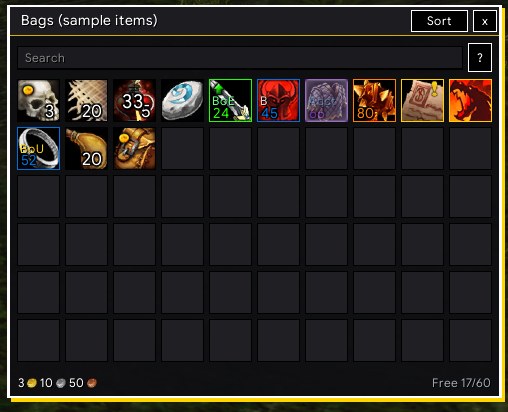
All your bags in one window, with item levels, borders, search, sorting and your other characters' items.
所有背包合成一个窗口,带装等、品质边框、搜索和整理,还能查看其他角色的物品。
P5UI puts every bag in one window, in place of Blizzard's bags. Each slot can show item level, a quality border, junk marks and a glow on new items. You can group slots by category, make categories of your own, and search with conditions such as item level or quality. The character and Warband banks use the same slots. P5UI also records the bags, banks, gold and currencies of each character, so you can look at them from any character. At a vendor it can sell junk and repair.
P5UI 把所有背包合成一个窗口,替换暴雪原来的背包。格子可以显示装等、品质边框、垃圾标记和新物品发光,也能按类别分组,还能自己建分类,并用装等、品质等条件搜索。个人银行和战团银行用同样的格子。P5UI 还会记下每个角色的背包、银行、金币和货币,在任何角色上都能只读查看。到商人那里可以自动卖灰、自动修理。
What you can set可以设置什么
- Item level, quality borders, junk marks, new-item glow and binding marks (bound, bind on equip, bind on use, account)
- A red tint on items your character cannot use, and an arrow on usable gear that is clearly better than yours
- Bag order or item categories (Weapons, Armor, Consumables, Quest, Materials, Other, Empty slots, Recent items), plus up to 12 categories of your own, by item ID or by rules (item type, quality, binding)
- Slots per row, slot size and spacing for the bags and for the bank; scale and position for the bag window
- Advanced search, for example
ilvl>=60 q:epic type:plate bound:no count>=5 price>1g - Sell junk and repair when a vendor opens (both on by default), with guild funds first if you want
- Mail tools (a "Collect all" button) and recipe material records (each with a switch), and a read-only viewer for other characters' bags, banks, gold and currencies
- 装等、品质边框、垃圾标记、新物品发光,以及已绑 / 装绑 / 用绑 / 账号标记
- 角色不能用的物品变红;可用装备明显比身上的好时显示箭头
- 按背包顺序或按类别(武器、护甲、消耗品、任务、材料、其他、空格、最近拿到的)显示,还能自建最多 12 个分类,按物品编号或规则(物品类型、品质、绑定状态)归类
- 每行格数、格子大小、间距,背包和银行分别设置;背包窗口还可以调缩放和位置
- 高级搜索,例如
ilvl>=60 q:epic type:plate bound:no count>=5 price>1g - 到商人自动卖灰、自动修理(默认都开),可以先用公会资金
- 邮件工具(“收取全部”按钮)和配方材料记录(各有开关),以及只读查看其他角色背包、银行、金币和货币的窗口
Where to find it在哪里
No slash command of its own. Bag keys, the bag bar, vendors and the mailbox open the P5UI window as usual. In the settings window (/p5ui), left menu, under "Interface": Bags (背包).
没有专门的斜杠命令。背包快捷键、背包栏、商人和邮箱照常打开 P5UI 的背包窗口。在设置窗口(/p5ui)左边菜单“界面”下选“背包”。
Loot拾取
A flat loot window, flat roll bars, a roll record and an assign menu for master looters.
扁平拾取窗口、掷骰条、掷骰记录,以及队长分配助手。
P5UI replaces Blizzard's loot window with a flat one. With auto loot the window stays up a little longer, so you can see what dropped and which items are already in your bags. Each group loot roll gets its own bar with Need, Greed and Pass (plus Disenchant or Transmog when the roll offers them), and the roll record shows what each member picked and rolled. If you are the master looter, clicking an item opens an assign menu, and a loot log records who got what.
P5UI 把暴雪的拾取窗口换成扁平的样子。自动拾取时窗口会多停一会儿,让你看清掉了什么,已进背包的会打勾。队伍掷骰时每件物品一条掷骰条,上面是需求、贪婪和放弃(掷骰允许时还有分解或幻化),掷骰记录会列出每个队员选了什么、掷了多少点。你是拾取分配者时,点物品会打开分配菜单,分配记录会记下谁得到了什么。
What you can set可以设置什么
- The P5UI loot window and the P5UI roll bars, each with its own switch
- Open the window at the mouse or at a fixed place; scale and position
- Fast loot, and how long the window stays up with auto loot (0 to 3 seconds, 0.8 by default)
- Roll bar width, scale and position
- Roll record: open it automatically, how many items to keep (1 to 20), hide it after some idle seconds (0 = never)
- Master loot: members grouped by class, "To me" and "Roll", and when to ask once more before giving (by item quality); the loot log keeps 10 to 500 entries
- Simulation buttons for a dungeon drop and for master loot: nothing is really looted or given
- 拾取窗口和掷骰条各有一个开关
- 窗口可以在鼠标处打开,也可以固定位置;缩放和位置可调
- 快速拾取,以及自动拾取时窗口停留的时间(0 到 3 秒,默认 0.8 秒)
- 掷骰条的宽度、缩放和位置
- 掷骰记录:是否自动打开、保留几件物品(1 到 20)、闲置多少秒后隐藏(0 为不隐藏)
- 队长分配:成员按职业分组,另有“给自己”和“掷骰”,可以按品质设置是否再确认一次;分配记录最多保留 10 到 500 条
- 副本掉落和队长分配都有模拟按钮,不会真的拾取或分配
Where to find it在哪里
/p5ui loot (also /p5ui lootlog) opens or closes the loot log. In the settings window, left menu, under "Interface": Loot (拾取). The loot log also opens from the "Loot log" button on the roll record's title bar.
/p5ui loot(也可输入 /p5ui lootlog)打开或关闭分配记录。在设置窗口左边菜单“界面”下选“拾取”。分配记录也可以从掷骰记录标题栏上的“分配记录”按钮打开。
Chat聊天
A flat chat window with channel buttons, unread counts, a jump-to-latest button and a copy window.
扁平的聊天窗口:频道按钮、未读数、回到最新按钮和复制窗口。
P5UI draws the chat as one card: tabs on top, the messages, and an input area below. Channel buttons can sit above the edit box. Lines can show a short channel name, the speaker's level and the time. While you are scrolled up, a button counts the new lines. Keyword filtering and saved chat history are on the same page; both are off by default. A Classic style brings back the older look.
P5UI 把聊天窗口画成一张卡片:上面是标签行,中间是消息,下面是输入区。频道按钮可以排在输入框上方,每行可以显示单字频道名、说话人的等级和时间。往上翻时,有一个按钮告诉你来了几条新消息。同一页上还有关键词过滤和聊天记录保存,两项都默认关闭,也可以改回经典样式。
What you can set可以设置什么
- Window style, Card or Classic; background opacity at rest, under the mouse and idle, idle seconds, line spacing, font size and outlined text
- How a line reads: channel name (short, letter or full), message colour, brackets round names, a gold name when someone mentions you, time format, clickable web links, class colours and the level before names
- Channel buttons above the edit box (the default for new profiles), above the chat, below the input box or in a left column; names or single letters; each button on the bar, under "More" or off
- Input and tabs: unread counts on tabs, a "jump to latest" button, an input field that is always shown, a hint and a character counter
- Blizzard's own chat buttons: always shown, only on mouse-over, or never; a copy button, and a copy window with 20 to 200 lines, with or without the time
- Chat filtering by keywords and repeated messages, for the channel types you pick; saved chat history for the channels you pick, 100 to 2,000 messages (both off by default)
- On a Chinese client, English names in the item and quest links you shift-click into chat (on by default)
- 窗口样式(卡片或经典);平时、鼠标指上或输入时、闲置时的背景不透明度,闲置秒数,行距,字号,描边
- 每一行怎么显示:频道名(单字、字母或完整)、正文颜色、名字的方括号、别人提到你时名字变金色、时间格式、可点击网址、职业颜色、名字前的等级
- 频道按钮可以放在输入框上方(新配置档的默认)、聊天上方、输入框下方或左边一列;写名字或单字;每个按钮可以在条上、收进“更多”或关闭
- 输入与标签:标签上的未读数、“回到最新”按钮、一直显示的输入框、提示文字和字数计数
- 暴雪自带的聊天按钮:一直显示、鼠标移上去才显示或不显示;复制按钮,以及放 20 到 200 行、可带时间的复制窗口
- 聊天过滤:按你选的频道类型过滤关键词和重复消息;保存聊天记录:按你选的频道保存 100 到 2000 条消息(两项都默认关闭)
- 中文客户端里,shift+点击放进聊天框的物品和任务链接可以带英文名(默认开)
Where to find it在哪里
No slash command of its own. In the settings window (/p5ui), left menu, under "Interface": Chat (聊天). Sections: Look, Messages, Channel buttons, Input and tabs, Copy and history, Chat filtering, Saved chat history, Chat links.
没有专门的斜杠命令。在设置窗口(/p5ui)左边菜单“界面”下选“聊天”。小节有:外观、消息、频道按钮、输入与标签、复制与历史、聊天过滤、保存聊天记录、聊天链接。
Quests任务
A zone-grouped quest tracker, flat quest windows, level estimates and auto accept and turn-in.
按区域分组的任务追踪、扁平的接交任务窗口、做完任务后的等级预估和自动接交。
P5UI replaces Blizzard's quest tracker with a list grouped by zone. Each quest can show its level and roughly what level you will be after finishing it. The windows for taking and handing in quests are flat and dark, and the dialog, book and quest text can be made larger. Talking to a quest giver can accept and hand in quests for you. It stops when you must choose a reward, and holding Shift pauses it.
P5UI 把暴雪的任务追踪换成按区域分组的列表。每个任务可以显示等级,也能估算做完之后大约到几级。接任务和交任务的窗口换成扁平深色,对话、书本和任务文字可以放大。和任务 NPC 说话时可以自动接任务、交任务,遇到要选奖励的任务会停下来,按住 Shift 可以暂停这一次。
What you can set可以设置什么
- The P5UI tracker on or off; quest level before the title, quest count in the title bar, your current zone first, quest item buttons
- The level after finishing: under each quest, and in one line at the bottom for all quests in the unfolded zones (two switches)
- Look: font size, outlined text, background opacity, size, scale and position; it fades in combat, with its own faded opacity
- Quest windows restyled: flat dark panel, class-coloured title strip, [level] in difficulty colour, reward icons outlined by quality; a preview needs no NPC
- Reading text: enlarge dialog, book and quest text up to 175% (off by default)
- Auto accept and auto turn-in (both on by default); with a choice of rewards it waits for you, or can take the one that sells for the most (off by default); accepting quests shared by group members is a separate switch (off by default)
- Left-click opens details, Shift-click links the quest, right-click opens a menu with share and abandon; sample quests help you place the tracker
- P5UI 任务追踪的开关;任务名前的等级、标题栏里的任务数、当前区域排最前、任务物品按钮
- 做完任务后的等级:每个任务下面单独显示,底部另有展开的区域里所有任务一起做完的预估(两个开关)
- 外观:字号、描边、背景不透明度、大小、缩放和位置;战斗中会变淡,淡化后的透明度可调
- 接交任务窗口换样式:扁平深色、职业颜色标题条、按难度着色的 [等级]、按品质描边的奖励图标;不用 NPC 就能预览
- 阅读文字:对话、书本和任务文字最大放到 175%(默认关闭)
- 自动接任务、交任务(默认都开):有几个奖励可选时停下来等你选,也可以自动挑卖价最高的(默认关);队友分享的任务是否也自动接,另有开关(默认关)
- 左键打开详情,Shift+左键把任务发到聊天,右键菜单可以分享或放弃;示例任务帮你摆好位置
Where to find it在哪里
/p5ui questparty prints troubleshooting info about your party's quest progress (point at a quest mob first). In the settings window, left menu, under "Interface": Quests (任务). The quest lines on tooltips are switched on the Tooltips page.
/p5ui questparty 在聊天框列出队友任务进度的排查信息(先用鼠标指着一只任务怪)。在设置窗口左边菜单“界面”下选“任务”。鼠标提示里的任务行在“鼠标提示”页里开关。
Leveling dungeons练级副本
The classic dungeons in level order, with each quest, who starts it and who ends it.
经典副本按推荐等级排列,列出每个任务、谁给、在哪里交。
This page opens a window that lists 19 classic dungeons in recommended-level order, from Ragefire Chasm to Scholomance and Stratholme. Each dungeon lists its quests by level: the quest level, the level you can take it at, the side, who starts it and where, and who ends it. Quests you have done or have in your log are marked, and the window opens on the dungeon for your level. The data is built in, from pfQuest (MIT licence) and CMaNGOS, with English and Simplified Chinese names.
这一页打开一个窗口,按推荐等级列出 19 个经典副本,从怒焰裂谷到通灵学院和斯坦索姆。每个副本的任务按等级排列:任务等级、可以接的等级、阵营、在哪里由谁给,以及找谁交。你完成的和正在做的任务会标出来,窗口打开时先显示适合你当前等级的副本。数据内置,来自 pfQuest(MIT 许可)和 CMaNGOS,有简体中文和英文名。
What you can set可以设置什么
- Open the window from the page ("Open leveling dungeon information"), or open and close it with
/p5ui dungeons - Only quests my side can take (on by default)
- Hide quests I have done (off by default)
- Marks on each quest: done, in your log, ready to turn in
- A preview on the page shows the dungeon for your level and its first quests
- Names follow your interface language: English, or Simplified Chinese
- 在这一页点“打开练级副本信息”开窗口,也可以输入
/p5ui dungeons打开或关闭 - 只看我这边阵营能接的任务(默认开)
- 隐藏已经完成的任务(默认关)
- 每个任务的标记:已完成、在任务日志里、可以交了
- 页面上的预览显示适合你当前等级的副本和它的前几个任务
- 名字跟随界面语言:英文或简体中文
Where to find it在哪里
/p5ui dungeons (also /p5ui dungeon) opens and closes the window. In the settings window, left menu, under "Interface": Leveling dungeons (练级副本).
/p5ui dungeons(也可输入 /p5ui dungeon)打开或关闭练级副本窗口。在设置窗口左边菜单“界面”下选“练级副本”。
Tooltips鼠标提示
Flat tooltips with class colours, the target, the distance, item level and quest progress.
扁平的鼠标提示:职业颜色、目标、距离、装等和任务进度。
P5UI gives tooltips a flat dark look with a thin border and a flat health bar. On units, names take the class or reaction colour, and there is a "Target:" line and a "Distance:" line. Items show their item level, and the border takes the item's quality colour. Tooltips of quest mobs, quest items and objects show your quest progress and, in a party, your party members' progress. An item's tooltip can also list how many of it each of your characters has.
P5UI 给鼠标提示换上扁平深色的样子,边框很细,血条也是扁平的。指向单位时,名字按职业或阵营着色,并多出“目标”和“距离”两行。物品提示显示装等,边框按品质上色。怪物、任务物品和物体的提示里会列出你的任务进度,在队伍里还能看到队友的进度。物品提示也能列出你每个角色各有多少件。
What you can set可以设置什么
- Style tooltips on or off; border colour by class, reaction or item quality; tooltip size (50 to 150%); tooltips can follow the mouse
- Units: names in class or reaction colour, the target line, the distance line (its size can be 100 to 300%), and hide unit tooltips in combat
- Items: show item level
- Quests: [level] in difficulty colour, a sword (kill) or bag (loot) before each objective, green when done
- Party members' quest progress under yours (members do not need P5UI)
- Item counts on all characters: bags, banks, equipment and mail, with a button to forget the other characters
- Sample tooltips: your own unit, an equipped item and a sample quest mob
- 鼠标提示换样式的开关;边框按职业、阵营或物品品质着色;提示大小(50% 到 150%);提示可以跟随鼠标
- 单位:名字按职业或阵营着色,“目标”一行,“距离”一行(大小 100% 到 300%),以及战斗中隐藏单位提示
- 物品:显示装等
- 任务:[等级] 按难度着色,每个目标前有剑(要杀)或袋子(要拾取),完成后变绿
- 在你的任务下面列出队友的任务进度(队友不用装 P5UI)
- 所有角色的物品数量:背包、银行、已装备和邮件,还有“忘记其他角色”的按钮
- 示例提示:你自己、一件已装备的物品和一只示例任务怪
Where to find it在哪里
No slash command of its own. In the settings window (/p5ui), left menu, under "Interface": Tooltips (鼠标提示).
没有专门的斜杠命令。在设置窗口(/p5ui)左边菜单“界面”下选“鼠标提示”。
Maps地图
A square minimap, a flat world map and quest log, a waypoint arrow and a levelling HUD map.
方形小地图、扁平的大地图和任务日志、路点箭头,还有练级用的练级地图。
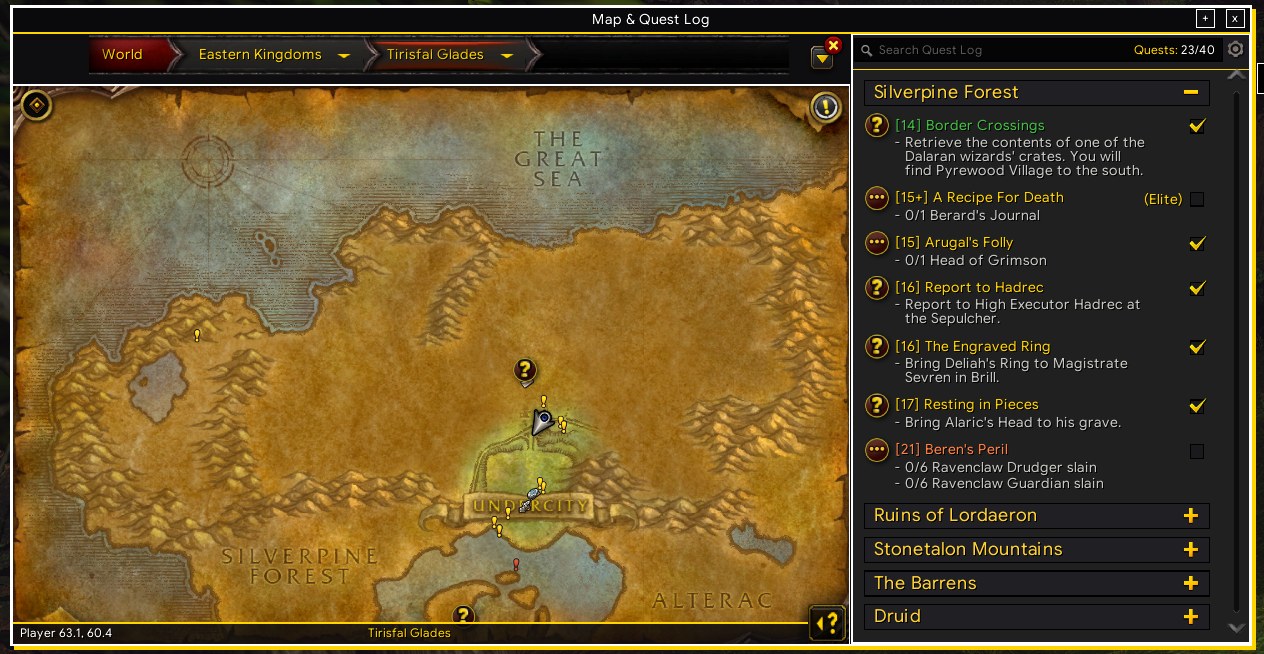
The Maps page gives the minimap, the world map and the quest log beside it one flat look. The minimap is square, with its buttons lined up on the right and a bar under it for coordinates, zone and time. A manual waypoint arrow shows direction and distance. The optional HUD map draws your zone under your character while you level, with quest areas, quest objectives and quest givers.
地图页把小地图、大地图和它旁边的任务日志换成同一种扁平样子。小地图是方形的,周围的按钮收在右边一列,下面一条显示坐标、地名和时间。手动路点箭头显示方向和直线距离。可选的练级地图把你所在的区域画在人物脚下,并显示任务区域、任务目标和接交任务的位置。
What you can set可以设置什么
- Minimap: square with a thin outline; gather the buttons (tracking, calendar, addon menu, mail, other addons' icons) on its right edge; coordinates, zone and time under it (click the time for the alarm and stopwatch)
- World map: a flat dark panel, and a bar at the bottom with your coordinates, the map's name and the cursor's coordinates
- Quest log beside the world map in the same flat look, with a preview
- Manual waypoint: Ctrl-click the world map or type coordinates; arrow scale and position; right-click the arrow to clear it
- HUD map (off by default): opacity, edge fade width, size, position and lock; zoom steps (from 50 yards by default, up to the whole zone)
- HUD map quests: all or only tracked quests, quest areas and their colours, "?" for turn-ins, "!" for quest givers you have met, fade in combat
- HUD map mouse: hold Alt (or pick Ctrl or Shift) to move or zoom it; key bindings to toggle it and to zoom
- Game object icons: an effect, the name and an icon over the herb, ore vein, quest object, chest, fishing bobber or other object you are about to interact with (the one in front of you, within 15 yards; needs "Enable interact key" in the game settings); ten effects, a switch, colour, size, intensity and offset for every category or for all at once, and a preview
- 小地图:方形、细边框;把追踪、日历、插件菜单、邮件和其他插件的图标收到右边一列;下面显示坐标、地名和时间(点时间打开闹钟和秒表)
- 大地图:扁平深色面板,底部一条显示你的坐标、地图名和鼠标坐标
- 大地图旁边的任务日志换成同样的扁平样子,带预览
- 手动路点:Ctrl+点击大地图或输入坐标;箭头大小和位置可调;右键点箭头清除
- 练级地图(默认关闭):透明度、边缘渐隐宽度、大小、位置和锁定;缩放档默认从 50 码到整张区域地图,档位可调
- 练级地图的任务:全部任务或只看追踪的、任务区域和颜色、交任务的“?”、见过的任务给予者的“!”、战斗中变淡
- 练级地图的鼠标:按住 Alt(也可选 Ctrl 或 Shift)才能移动和缩放;有按键绑定可以开关和缩放
- 游戏物体图标:你面前要碰的草药、矿脉、任务物品、宝箱、鱼漂或其他物品(15 码内的那一个,需要游戏设置里打开“启用交互键”)头上显示一个特效、名字和图标;十种特效,每一类(或全部一起)可设开关、颜色、大小、亮度和偏移,有预览
Where to find it在哪里
/p5ui hudmap switches the HUD map on or off (/p5ui hudmap sample toggles the sample). Key bindings for the HUD map are in the game's Options > Keybindings > AddOns > P5UI. M opens the world map. In the settings window, left menu, under "Interface": Maps (地图).
/p5ui hudmap 打开或关闭练级地图(/p5ui hudmap sample 开关示例)。练级地图的按键绑定在游戏的“选项 → 按键设置 → 插件 → P5UI”里。按 M 打开大地图。在设置窗口左边菜单“界面”下选“地图”。
Training技能训练
What your class trainer teaches now and at each later level, listed in the spellbook.
在技能书里看职业训练师现在和以后每一级能教你什么。
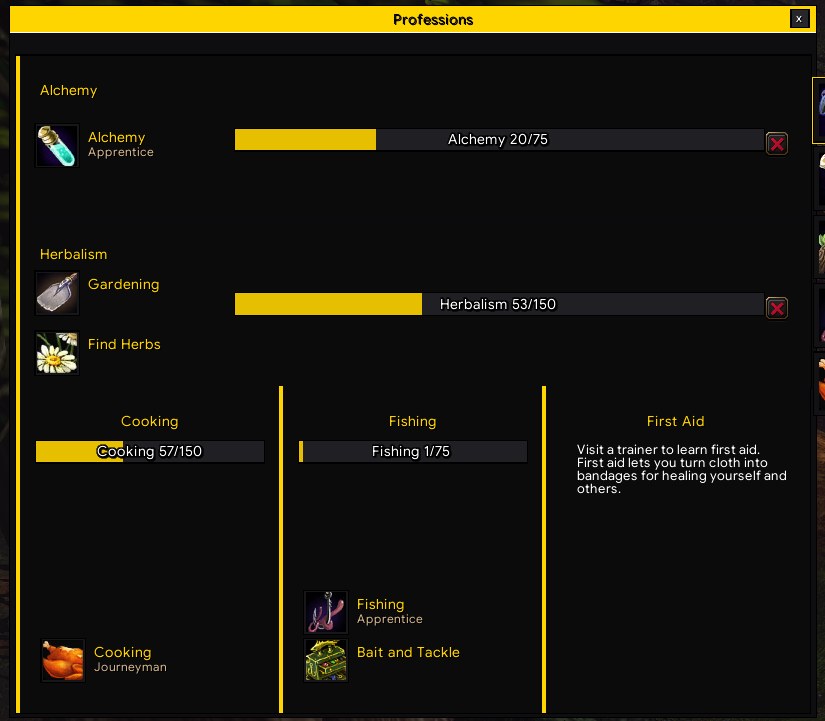
A Training tab in the spellbook lists what you can learn from your class trainer now, with the price in red when you cannot afford it, and then every level to come. Spells you know are left out. Visit your class trainer once and P5UI records the whole list; characters of the same class share it. A panel beside the trainer can learn what you can afford, and nothing is bought until you confirm. This page also restyles the professions window.
技能书里多一个训练标签,列出现在能在职业训练师那里学的技能,钱不够的价钱标红,再往后是以后每一级要学的;已经会的不列。访问一次职业训练师,P5UI 就记下完整清单,同职业的角色共用。训练师旁边还有一个面板,可以一次学会你负担得起的技能,确认之前什么都不买。这一页也管专业窗口的外观。
What you can set可以设置什么
- The Training tab beside the spellbook, on or off (press P, then click the book tab)
- A sample list with made-up levels and prices, so you can look at it without a trainer
- Recorded trainer data per class, and a button to forget it
- Bulk learning beside the class trainer: a preview of the class skills you can afford, in list order, with the total price; it stops if a price, the list or your money changes
- A sample of the bulk learning panel that spends nothing
- The professions window (the K page and the crafting page) in P5UI's look, with a preview of the K page
- 技能书旁边的训练标签(按 P 打开技能书,再点书本标签),可开关
- 示例清单,用编造的等级和价钱,不用去训练师那里就能看
- 按职业记录的训练师数据,以及清除它的按钮
- 职业训练师旁边的批量学习面板:按列表顺序预览你负担得起的职业技能和总价;价钱、列表或金钱有变化就停
- 批量学习面板的示例,不会花钱
- 专业窗口(K 键的专业技能页和制作页)换成 P5UI 的样子,带专业技能页的预览
Where to find it在哪里
No slash command of its own. Press P for the spellbook. In the settings window (/p5ui), left menu, under "Interface": Training (技能训练).
没有专门的斜杠命令。按 P 打开技能书。在设置窗口(/p5ui)左边菜单“界面”下选“技能训练”。
Talent planner天赋模拟
Plan your talents level by level with your class's real trees, keep several plans and share them.
用你职业真实的天赋树一级一级规划加点,存几套方案并分享。
The talent planner reads your class's three trees from the game, so you can plan points level by level from level 10 without spending any. It follows the tier rules, shows what to take at each level, and keeps several plans per class. A plan can be shared as a string, and the talent window can mark the next talent your plan takes. You still click your talents yourself; the addon never does it for you. The native talent window can also use P5UI's flat dark look.
天赋模拟器直接读取你职业的三系天赋,让你不花点数就能规划(天赋从 10 级开始)。它按层级规则加点,列出每一级该点什么,每个职业可以存几套方案,导出成字符串就能分享,天赋窗口里还会标出方案的下一个天赋。天赋仍然由你自己点,插件不会替你点。原生天赋窗口也可以换成 P5UI 的扁平深色外观。
What you can set可以设置什么
- A "Talent planner" button beside the talent window (press N), on or off
- Mark the talent your plan takes next in the talent window
- Left-click adds a point, right-click takes one back; the tier and arrow rules are enforced
- The order list on the right shows what to take at level 10, 11 and so on
- Several saved plans per class, shared by that class's characters: new, rename, delete, from my talents, reset
- Export and import a plan as a string
- The native talent window in P5UI's look (flat dark background, thin black edge; on by default), with a look sample
- 天赋窗口旁边的“天赋模拟”按钮(按 N 打开天赋窗口),可开关
- 在天赋窗口里标出方案下一个要点的天赋
- 左键加一点,右键减一点;层级和箭头的规则都会检查
- 右边按等级列出加点顺序:10 级点什么、11 级点什么……
- 每个职业可以存几套方案,同职业的角色共用:新建、重命名、删除、从我现有的天赋生成、重置
- 把方案导出成字符串,或导入别人的
- 原生天赋窗口换成 P5UI 的外观(扁平深色背景、细黑边,默认开),带外观示例
Where to find it在哪里
/p5ui talents (also /p5ui talent) opens or closes the planner. In the settings window, left menu, under "Interface": Talent planner (天赋模拟).
/p5ui talents(也可输入 /p5ui talent)打开或关闭天赋模拟器。在设置窗口左边菜单“界面”下选“天赋模拟”。