Unit frames单位框体
Player, target, focus, pet and boss frames, nameplates, combat text, auras, resource bar, cast bar and swing timer.
玩家、目标、焦点、宠物和首领框体,姓名板,伤害数字,光环,资源条,施法条和攻击计时。
General通用
Look, range, camera, corners and the switches that replace Blizzard's frames, in one place.
框体替换开关、外观、距离窗口、边角样式、镜头和装备信息。
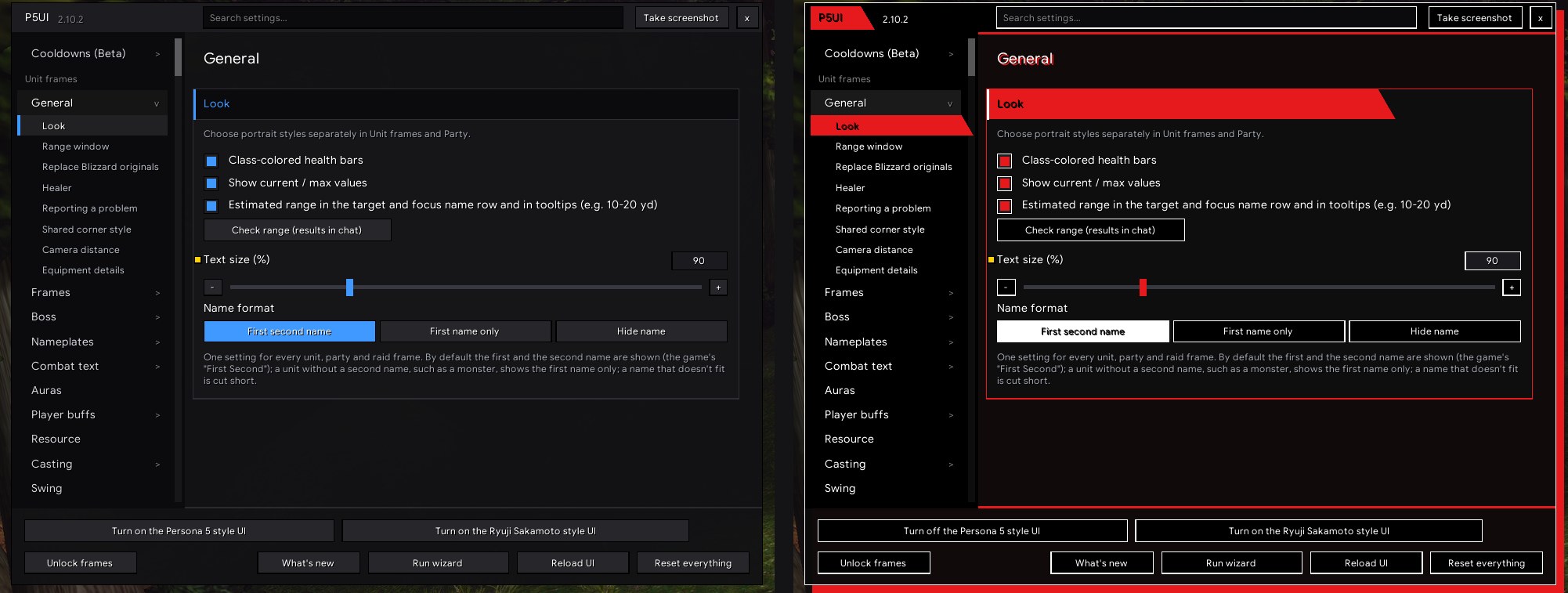
The General page holds the settings that reach many parts at once. Here you choose which of Blizzard's frames P5UI replaces; unticking one brings Blizzard's back right away (the action bar look needs a reload). You also set health bar colors, number and name text, a small distance window, and one corner style, square or rounded, for portraits, frames, bars and icons. Further down are the camera zoom limit, the equipment details beside the character window and the buttons for reporting a problem.
“通用”页放的是会影响很多部分的设置。你可以选择 P5UI 替换暴雪的哪些框体,取消勾选就马上换回暴雪的(动作条外观要重载界面才恢复)。这里还有血条颜色、数值和名字的显示方式、一个只显示数字的小距离窗口,以及统一的边角样式:方角或圆角,头像、框体、条和图标一起变。再往下是镜头拉远上限、角色窗口旁的装备信息和报告问题的按钮。
What you can set可以设置什么
- Replace Blizzard's originals: player, target, focus, pet, boss, the top-right buff bar, cast bar, swing timer, pet bar and the action bar look
- Look: class-colored health bars, current / max values, text size
- One name format for every frame: first and second name, first name only, or hidden
- Distance: an estimate in the target and focus name row and in tooltips, and a small range window with its own size, background and opacity
- One corner style for the whole UI: square, or rounded (the default) with a 0 to 10% radius (4% by default)
- A higher camera zoom-out limit (factor 1 to 2), and equipment details beside the character and inspect windows (item levels, empty slots, durability warning, missing enchants)
- A Healer option (off by default: in a group, offensive spells go to the target's target), and buttons that copy a bug report, open the Feedback page and show CPU use
- 替换暴雪原版:玩家、目标、焦点、宠物、首领框体,右上角的增益减益栏,施法条,攻击计时条,宠物技能栏和动作条外观;取消勾选就换回暴雪的(动作条外观要重载界面)
- 外观:血条用职业颜色、显示具体数值、文字大小
- 所有框体共用一个名字格式:名字 第二名字、只显示名字、不显示名字
- 距离:目标和焦点的名字行、鼠标提示里的距离估计,以及一个单独的小距离窗口(数字大小、背景、透明度可调)
- 整个界面一个边角样式:方角,或圆角(默认;半径 0 到 10%,默认 4%)
- 镜头可以拉得更远(倍数 1 到 2);角色和观察窗口旁的装备信息(装等、空格、耐久提醒、缺附魔标记)
- 治疗者选项(默认关:小队中攻击性法术对目标的目标施放);复制反馈信息、打开“反馈”页和查看插件占用的按钮
Where to find it在哪里
In the settings window, left menu, Unit frames group: General (/p5ui opens the settings). /p5ui unlock / /p5ui lock to move the range window. /p5ui report and /p5ui feedback open the Feedback page, /p5ui perf the Performance page. /p5ui probe healercast lists which keys the Healer option redirects.
在设置窗口左侧菜单“单位框体”组里:通用(/p5ui 打开设置)。/p5ui unlock / /p5ui lock 解锁或锁定框体,用来移动距离窗口。/p5ui report 和 /p5ui feedback 打开“反馈”页,/p5ui perf 打开“插件表现”页。/p5ui probe healercast 列出“治疗者”选项改了哪些按键。
Frames框体
Settings for your player, target, target-of-target, focus, focus-target and pet frames.
玩家、目标、目标的目标、焦点、焦点的目标和宠物框体的设置。
The Frames page sets up your own unit frames: player, target, target of target, focus, focus target and pet. Pick a frame with the tabs, then set its size, scale, opacity, position, portrait style and health text. Portraits can be 3D, 2D, slanted 2D, a class icon, a backdrop or hidden. Below are incoming heals and absorb shields, a druid mana strip, hunter pet happiness and fading out of combat. "Show all frames" unlocks every frame, so you can place them without a target.
“框体”页设置你自己的单位框体:玩家、目标、目标的目标、焦点、焦点的目标和宠物。用上面的标签选一个框体,再调它的大小、缩放、透明度、位置、头像样式和血量文字。头像可以选 3D、2D、2D(斜)、职业图标、头像背景或不显示。下面还有治疗预估和吸收盾、德鲁伊法力条、猎人宠物快乐度和脱战淡出。点“显示全部框体”解锁,没有目标也能摆位置。 - 每个框体一个按钮,打开这个框体的框体编辑器窗口:放大显示框体,设置分三个分页,点框体上的部件就跳到它的设置;首领页也有同样的按钮
What you can set可以设置什么
- One tab per frame: size, scale, opacity, position, and a reset button
- Portrait style for each frame: 3D, 2D, slanted 2D, class icon, portrait backdrop or none
- Health text: percent, value, missing, current plus percent, or none; number abbreviation (client default, none, k / M, 万 / 亿)
- Raid target marks and ready check results on the frames
- Incoming heals and absorb shields on the health bar, with your own heals in a bluer green if you like
- A druid mana strip under the resource bar in bear and cat form; a hunter pet happiness icon on the pet frame
- Out-of-combat fade for the party, player, focus and pet frames (off by default; it fades when you are out of combat with no target), with its own opacity, delay and mouse-over restore time
- A row of buttons (one per frame) opens the frame editor window for that frame: the frame magnified, its settings in three tabs, and a click on a part of the frame jumps to its settings; the Boss page has the same button
- 每个框体一个标签:大小、缩放、透明度、位置,还有重置按钮
- 每个框体各自的头像样式:3D、2D、2D(斜)、职业图标、头像背景或不显示
- 血量文字:百分比、数值、缺血、当前+百分比或不显示;数字缩写可选游戏默认、不缩写、k / M、万 / 亿
- 框体上的团队标记和就位确认结果
- 血条上的治疗预估和吸收盾,自己的治疗可以用偏蓝的绿色单独标出
- 德鲁伊熊、猫形态下资源条下面的法力条;宠物框体上的猎人宠物快乐度图标
- 队伍、玩家、焦点、宠物框体的脱战淡出(默认关;脱战且没有目标时变淡),透明度、等待时间和鼠标移上去的恢复时间都能调
Where to find it在哪里
In the settings window, left menu, Unit frames group: Frames. /p5ui unlock / /p5ui lock (the same as the page's "Show all frames (unlock)" button) to move frames; /p5ui test shows a test party.
在设置窗口左侧菜单“单位框体”组里:框体。/p5ui unlock / /p5ui lock(和页面上的“显示全部框体(解锁)”按钮一样)用来移动框体;/p5ui test 显示测试小队。
Boss首领
Up to five boss frames with cast bars, your debuffs and raid marks.
最多五个首领框体,带施法条、你的减益和团队标记。
Boss frames show up to five bosses during an encounter and replace Blizzard's boss frames. Each frame shows the name, level, health and power, with a raid mark and a white outline when it is your target. A cast bar sits under each one, grey when the cast cannot be interrupted. By default only your own debuffs show, so you can see how long they have left. The Test bosses button shows stand-ins, so you can place the frames without a fight.
首领框体在首领战里最多显示五个首领,换掉暴雪自己的首领框体。每个框体显示名字、等级、血量和能量,有团队标记;是你的目标时有白色描边。每个框体下面有施法条,不能打断时是灰色。默认只显示你自己放的减益,方便看它们还剩多久。“测试首领”按钮会放出模拟首领,不用打首领也能摆好位置。
What you can set可以设置什么
- The switch to use P5UI boss frames (replaces Blizzard's); click a frame to target, right-click for its menu
- Test bosses button; unlocked, all five slots show and drag as one group
- Stacking downward (boss 1 on top) or upward, width, height, spacing, scale, opacity and position
- Health text (value and percent, percent, value, missing, none) and an optional portrait
- Cast bar under each frame, with its own height
- White outline on your target and raid target marks
- Debuff and buff rows: side, icon size, icons per row, maximum, countdown number size, and "only mine"
- 使用 P5UI 首领框体的开关(换掉暴雪的);点框体选中首领,右键打开菜单
- “测试首领”按钮;解锁后五个位置全部显示,整组一起拖动
- 向下排(首领 1 在上)或向上排,宽、高、间距、缩放、透明度和位置
- 血量文字(数值和百分比、百分比、数值、缺血、不显示),可选头像
- 每个框体下面的施法条,高度可调
- 目标的白色描边和团队标记
- 减益和增益两排:位置、图标大小、每行个数、最多几个、倒计时数字大小,还有“只显示我施放的”
Where to find it在哪里
In the settings window, left menu, Unit frames group: Boss. /p5ui bosstest (or the page's Test bosses button) shows five sample bosses; it ends when combat starts.
在设置窗口左侧菜单“单位框体”组里:首领。/p5ui bosstest(或页面上的“测试首领”按钮)显示五个模拟首领,开战时自动结束。
Nameplates姓名板
Flat enemy nameplates with quest colors, a detailed target plate, your debuffs and threat colors.
扁平的敌方姓名板:任务颜色、目标详情、你的减益、仇恨上色。
P5UI gives enemy and neutral nameplates the same flat look as its frames. Quest mobs get their own colors and a sword or bag icon, elite mobs get a dragon mark, and your target's plate shows level, name and health inside a taller bar. Your own debuffs appear on every enemy with the time left, and in a party or raid threat colors follow your role. Friendly NPCs look like friendly players, and those with a quest fade so the "!" shows through. Friendly player plates stay Blizzard's.
P5UI 把敌对和中立单位的姓名板换成和框体一样的扁平样式。任务怪有自己的颜色和小剑、小袋子,精英怪有龙标,当前目标的等级、名字和血量写在加高的血条里。每个敌人身上显示你放的减益和剩余时间,队伍或团队里的仇恨颜色按你的职责变化。友方 NPC 和友方玩家长得一样,有任务的会变淡,露出头顶的“!”。友方玩家的姓名板仍是暴雪的。
What you can set可以设置什么
- Quest colors (amber if they attack you, peach if not, grey when someone else tagged it) and quest icons: a sword to kill, a bag to loot
- Elite marks: a gold dragon, silver for rare elites, a star for rares
- Your target's plate: level, name and "current / max percent" in the bar, a mana bar for casters, its buffs and debuffs (or only your debuffs)
- Your debuffs on every enemy with time left; size sliders for the icons and the countdown numbers
- Threat colors in combat, in a party or raid (solo too if you tick "When solo too"), by role (tank, or damage and healer), automatic or chosen, with a color for mobs on another tank
- Cast bar with the cast target and an outline for interruptible casts in the last second; an enemy focus marker (purple border or crosshair); incoming heals and shields on health bars
- Friendly NPCs in the friendly-player look, faded when they have a quest; distance numbers; the game's own nameplate distance and spacing
- 任务颜色(主动攻击的橙黄色、不主动攻击的橙粉黄色、别人先打的灰色)和任务图标:要杀的是小剑,要拾取的是小袋子
- 精英标记:金色龙标,稀有精英银色,稀有怪星标
- 当前目标:等级、名字和“当前 / 最大 百分比”写进血条,有法力的怪多一条法力条,显示它的增益和减益(减益也可以只显示你的)
- 每个敌人身上你放的减益和剩余时间;图标和倒计时数字的大小各有滑块
- 战斗中的仇恨颜色,在队伍或团队里生效(勾选“单人时也上色”后单人也有),按职责(坦克,或输出和治疗),可自动判断也可自选,另有“在另一个坦克身上”的颜色
- 带施法目标的施法条,可打断的法术最后一秒描边;敌方焦点标记(紫色边框或准星);血条上的治疗预估和吸收盾
- 友方 NPC 用友方玩家的样子,有任务的变淡;距离数字;游戏自己的姓名板显示距离和上下间距
Where to find it在哪里
In the settings window, left menu, Unit frames group: Nameplates. /p5ui plates prints nameplate troubleshooting info. Nameplates are switched on in the game as usual (V by default; Shift+V for friendly ones).
在设置窗口左侧菜单“单位框体”组里:姓名板。/p5ui plates 在聊天框打印姓名板排查信息。姓名板的开关还是游戏里的(默认按 V;友方姓名板默认按 Shift+V)。
Combat text伤害数字
Your damage floats up over the enemy's nameplate, with optional spell icons; heals use the game's numbers.
你的伤害浮在敌人姓名板上,可带技能图标;治疗用游戏自带数字。
Combat text shows your damage as numbers that float up over the enemy's nameplate: yellow for spells, white for melee, with crits bigger and shaking. The icon of the spell that did it can sit beside each number; the icons are off by default, because the game hides the combat log from addons and P5UI works the spell out, so it can be wrong now and then. Heals are the game's own numbers, which P5UI switches on for you.
你打出的伤害会从敌人的姓名板上方飘起:法术黄色,平砍白色,暴击更大并晃动。每个数字旁边可以显示造成它的技能图标,图标默认关闭:游戏不让插件读战斗记录,技能是 P5UI 推断的,偶尔会配错。治疗用游戏自带的数字,P5UI 替你打开。页面上有模拟,不用打怪就能调好。
What you can set可以设置什么
- Damage numbers over the enemy's nameplate (on by default); a target without a nameplate gets them a little above the middle of the screen
- Spell icons next to the numbers (off by default), and an option to drop the icons in a party or raid
- Number size, and where the numbers start (up and down, left and right)
- Hide Blizzard's own damage numbers so they do not show twice; your old setting comes back when you turn this off
- Switch on the game's healing numbers, drawn over the healed player's head
- Heal numbers on portraits: a green "+number" on the player, target, focus, pet and party portraits, with optional damage taken and a size slider
- Two simulations to set it up without a fight
- 伤害数字飘在敌人的姓名板上方(默认开);没有姓名板的目标,数字显示在屏幕中间偏上
- 数字旁边的技能图标(默认关),在小队或团队里可以只显示数字
- 数字大小,以及数字从哪里开始(上下、左右)
- 隐藏暴雪自己的伤害数字,免得显示两份;关掉后恢复你原来的设置
- 打开游戏自带的治疗数字,画在受治疗者的头上
- 头像上的治疗数字:玩家、目标、焦点、宠物和小队头像上跳绿色“+数字”,可选加上受到的伤害,大小可调
- 两个模拟按钮,不用打怪就能调
Where to find it在哪里
In the settings window, left menu, Unit frames group: Combat text. The "Play a simulation (hits, crits, melee)" button at the top of the page and "Play sample heals on the portraits" run the tests. No slash command of its own.
在设置窗口左侧菜单“单位框体”组里:伤害数字。页面顶部的“播放模拟(伤害、暴击、平砍)”按钮和“在头像上播放模拟治疗”按钮用来试效果。没有专门的斜杠命令。
Auras光环
Two rows of square aura icons on every unit frame, with filters, sorting and corner marks.
每个单位框体两排方形光环图标,带筛选、排序和角标。
The Auras page sets the buffs and debuffs on the player, target, target of target, focus, focus target and pet frames. Each frame has two rows of square icons: the row next to the frame holds debuffs (and, on a friend, your heals over time and shields), and the outer row holds buffs. Small marks in the corners say whose aura it is. For each frame you set the side, size, number of icons and whether to show only yours. A sample button shows icons without a fight.
“光环”页设置玩家、目标、目标的目标、焦点、焦点的目标和宠物框体上的增益和减益。每个框体有两排方形图标:靠近框体的一排放减益(朋友身上还有你的持续治疗和护盾),外面一排放增益。角上的小标记说明这是谁放的。每个框体都能单独设置位置、图标大小、个数和“只显示我施放的”。“示例光环”按钮让你不用战斗就能看到图标。
What you can set可以设置什么
- Buffs and debuffs set apart for each of the six frames: show, side, alignment, icon size, how many, offsets
- "Only mine"
- Aura filter: all auras, crowd control only, or dispellable only
- Sort order: game default (your auras first), time remaining, or name; reverse order
- A gold border on stealable buffs, and corner marks for your auras and for ones cast by others, with an adjustable mark size
- Countdown number size as a percent of the icon, and a recolored countdown with a pulsing edge in the last 1 to 10 seconds
- Space between icons and between groups; a Sample auras button
- 六个框体各自单独设置增益和减益:显示、位置、对齐、图标大小、个数、偏移
- “只显示我施放的”
- 光环筛选:全部、只有控制效果、只有可驱散的
- 排序:游戏默认(优先你的光环)、剩余时间、名字,还可以反过来
- 可偷取的增益有金色边框;你放的和别人放的光环有角标,角标大小可调
- 倒计时数字大小按图标的百分比算;最后 1 到 10 秒倒计时变色并闪边
- 图标之间和分组之间的间距;“示例光环”按钮
Where to find it在哪里
In the settings window, left menu, Unit frames group: Auras. The "Sample auras" button at the top of the page shows icons on every frame without a fight.
在设置窗口左侧菜单“单位框体”组里:光环。页面顶部的“示例光环”按钮让每个框体不用战斗就显示图标。
Player buffs玩家增益
Rounded, outlined icons for the buff and debuff bars at the top right of the screen.
屏幕右上角的增益减益栏换成圆角图标和描边数字。
This page restyles Blizzard's own buff and debuff bars at the top right of the screen. Icons become rounded, with a thin outline and outlined numbers, the same look as the action bars. Debuff outlines are colored by type: magic, curse, disease and poison. You choose where the time shows, below the icon or inside it, and how big the time and stack numbers are. Icon size, position and rows stay in Blizzard's Edit Mode, and a button opens it.
这一页给屏幕右上角暴雪自带的增益减益栏换上动作条同款外观:圆角图标、细边框、描边数字。减益的边框按类型上色:魔法、诅咒、疾病、中毒。持续时间可以放在图标下方或图标里面,时间和层数数字的大小也能调。图标大小、位置和每行几个还是在暴雪的编辑模式里设,页面上有按钮可以直接打开。
What you can set可以设置什么
- Restyle switch for the buff and debuff bars (off puts Blizzard's look back)
- Debuff outlines colored by dispel type
- Buff outline in your class color, or black
- Duration below the icon or inside, at the bottom
- Duration and stack number sizes as a percent of the icon, so they never outgrow it
- A movable sample-buffs preview button, so every change shows at once
- An option to hide the bar and show your auras above the player frame instead (this page then has no effect)
- 美化增益减益栏的开关(关掉就换回暴雪原样)
- 减益边框按驱散类型上色
- 增益边框用职业颜色,或黑色
- 持续时间放在图标下方,或图标里面的底部
- 持续时间和层数数字的大小按图标的百分比算,不会超出图标
- 可拖动的示例增益预览按钮,改动马上能看到
- 可以改成隐藏这个栏、把光环显示在玩家框体上方(这时这一页不起作用)
Where to find it在哪里
In the settings window, left menu, Unit frames group: Player buffs. The page has an "Open Edit Mode" button for size, position and rows. A full reset after switching off needs /reload.
在设置窗口左侧菜单“单位框体”组里:玩家增益。页面上有“打开编辑模式”按钮,用来设置图标大小、位置和每行个数。关闭美化后要完全复原需要 /reload。
Resource资源条
A resource bar you can detach and place anywhere, with player health, druid mana and combo points.
可以拖出来摆放的资源条,带生命条、德鲁伊法力和连击点。
The resource bar shows your player power on a bar of its own that you can place anywhere on the screen. It follows your form: rage in bear form, energy in cat form, with druid mana underneath. Your health can sit above it with the same width, height and numbers, while the player frame keeps its own health bar. Combo points sit above the health bar, and while you cast, the power the spell will spend pulses. Size, scale, opacity, position and when it shows are set here.
资源条把你的能量放在一条单独的条上,可以摆到屏幕任何地方。它跟着形态变:熊形态显示怒气,猫形态显示能量,德鲁伊法力在下方。生命条可以放在能量条上方,宽、高和数字都和资源条一致,玩家框体自己的血条照旧保留。连击点在生命条上方,读条时将要消耗的那一段会闪。这一页设置大小、缩放、透明度、位置和什么时候显示。
What you can set可以设置什么
- Detach the resource bar from the player frame (on by default) and drag it anywhere
- Show values on the bar, and show it only in combat
- Width, height, scale, opacity and position
- Player health above the power bar (on by default), with a preview button
- Rage in bear form, energy in cat form and druid mana underneath
- Combo points on top, and the pulse of the power your cast will spend, with its cost as a minus number
- A reset button
- 把资源条从玩家框体上拆下来(默认开),拖到任何地方
- 条上显示数值;也可以只在战斗中显示
- 宽、高、缩放、透明度和位置
- 能量条上方的玩家生命条(默认开),有预览按钮
- 熊形态怒气、猫形态能量,德鲁伊法力在下方
- 上方的连击点,以及读条时将要消耗的那一段会闪,并用负数标出消耗
- 重置按钮
Where to find it在哪里
In the settings window, left menu, Unit frames group: Resource. /p5ui unlock / /p5ui lock to drag the bar. The druid mana strip's own settings (height, gap, numbers) are on the Frames page.
在设置窗口左侧菜单“单位框体”组里:资源条。/p5ui unlock / /p5ui lock 用来拖动资源条。德鲁伊法力条自己的设置(高度、间距、数值)在“框体”页。
Casting施法
A cursor ring for casts and the global cooldown, and a cast bar that marks latency.
鼠标圈显示施法和公共冷却,施法条标出延迟。
The Casting page keeps your casts near your eyes. The cursor ring puts three rings around your mouse: the outer one shows your cast or your main-hand swing, the middle one the global cooldown, and the inner one your off hand. The cast bar replaces Blizzard's and marks latency in red at its end, so once the cast reaches it, you can move. The page also sets the cast bars on your unit frames, shown in the name and level row.
“施法”页把施法信息放在你眼前。鼠标圈在鼠标周围画三圈:外圈是你的施法或主手攻击,中圈是公共冷却,内圈是副手。施法条替代暴雪的,延迟用红色标在末端,读条读到那里就可以移动了。这一页还设置头像框体上的施法条,施法时显示在姓名和等级栏里。
What you can set可以设置什么
- Cursor ring: cast (red), main hand or auto shot (yellow), global cooldown (white), off hand (blue), each on or off, with seconds left beside it
- Fade out when idle, always show, or only in combat; ring radius, thickness, gap and opacity
- Cast bar: spell icon, latency mark, time text (left / total, left only, none), width, height, scale, opacity, position
- Unit frame cast bars: in the name and level row of the player, target, focus, pet and their targets, each with its own switch
- Separate bars under the target, focus and pet frames instead, with their own height and offsets
- Channelled spells (Mind Flay, Drain Life, Blizzard and others) get a divider line at each tick on every cast bar; one switch on the page, and the lines of the stages already gone turn faint
- A "Simulate combat" button for casts, a channel, an interrupted cast, swings and global cooldowns
- 鼠标圈:施法(红)、主手或自动射击(黄)、公共冷却(白)、副手(蓝),各自可开关,剩余秒数显示在旁边
- 空闲时淡出、一直显示或只在战斗中显示;圈的半径、粗细、间距和透明度
- 施法条:技能图标、延迟标记、时间文字(剩余 / 总共、只显示剩余、不显示)、宽、高、缩放、透明度、位置
- 头像框体施法条:显示在玩家、目标、焦点、宠物及它们的目标的姓名和等级栏里,各有开关
- 也可以改回目标、焦点、宠物框体下面各自独立的施法条,高度和位置可调
- 引导法术(精神鞭笞、吸取生命、暴风雪等)进行时,每个施法条上按它的跳数画分隔线,页上有一个开关;已经走过的段落,线变成淡色
- “模拟战斗”按钮:模拟施法、引导、被打断、平砍和公共冷却
Where to find it在哪里
In the settings window, left menu, Unit frames group: Casting. /p5ui unlock / /p5ui lock to move the cast bar. Test mode: the "Simulate combat (casts, swings, GCD)" button at the top of the page, and "Show all frames" to see looping unit frame casts.
在设置窗口左侧菜单“单位框体”组里:施法。/p5ui unlock / /p5ui lock 用来移动施法条。测试:页面顶部的“模拟战斗(施法、平砍、公共冷却)”按钮;点“显示全部框体(解锁)”可以看到框体上循环播放的施法。
Swing攻击计时
Optional swing timer bars for main hand, off hand and ranged attacks.
可选的主手、副手、远程攻击计时条。
The swing timer shows how long until your next auto attack. Bars for main hand, off hand and ranged stack in one movable frame and replace Blizzard's when turned on. They are off by default, because the cursor ring on the Casting page already shows swings. The main-hand bar is always there, the off-hand bar appears with an off-hand weapon, and the ranged bar shows for hunters or while a ranged swing runs. Out of range, a bar dims and its time turns red.
攻击计时条显示离下一次自动攻击还有多久。主手、副手和远程三条叠在一个可以拖动的框里,打开后会替代暴雪自带的攻击计时。默认关闭,因为“施法”页的鼠标圈已经显示攻击计时。主手条一直有,副手条在你拿着副手武器时出现,远程条对猎人一直显示,其他职业在远程攻击进行时出现。目标超出攻击距离时,计时条变暗,时间变红。
What you can set可以设置什么
- The switch to show the swing timer (replaces Blizzard's), off by default
- Only show in combat (on by default), and show text
- Width, height, scale, opacity and position
- A combat simulation to see the bars without a fight
- A reset button
- 显示攻击计时条的开关(替代暴雪的),默认关闭
- 只在战斗中显示(默认开),显示文字
- 宽、高、缩放、透明度和位置
- 战斗模拟,不用打怪就能看到计时条
- 重置按钮
Where to find it在哪里
In the settings window, left menu, Unit frames group: Swing. /p5ui unlock / /p5ui lock to move the bars. Test mode: the "Simulate combat (casts, swings, GCD)" button at the top of the page.
在设置窗口左侧菜单“单位框体”组里:攻击计时。/p5ui unlock / /p5ui lock 用来移动计时条。测试:页面顶部的“模拟战斗(施法、平砍、公共冷却)”按钮。